vMix Output Settings Explained: Fullscreen, Outputs 1–4, NDI, SRT and MultiView
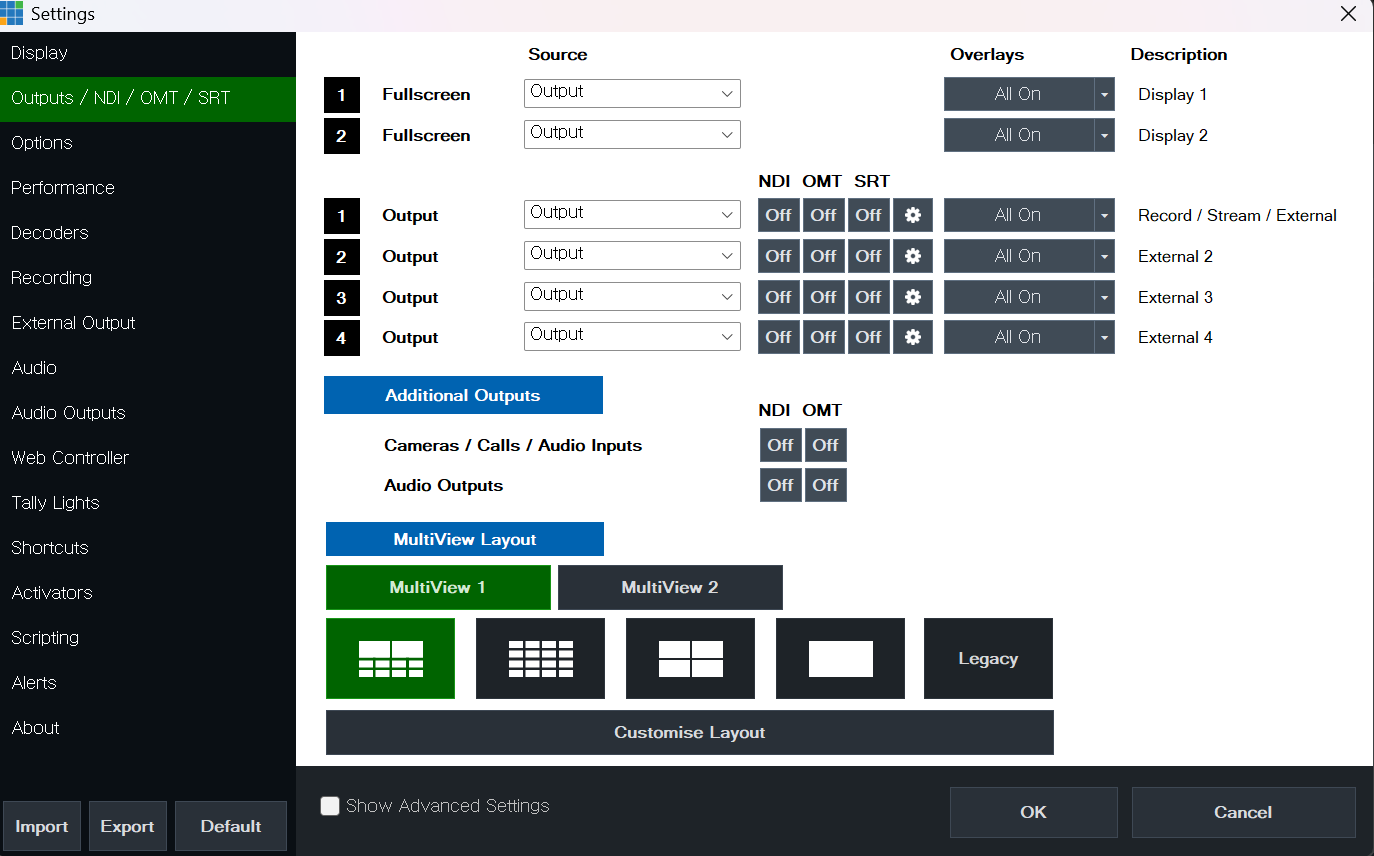
In vMix, everything about "where your picture goes and how it looks when it gets there" is set on one screen: Settings → Outputs / NDI / OMT / SRT. It looks crowded at first, but the structure is simple. Each row asks you to choose: what to send (Source) → whether to include graphics (Overlays) → where it goes (NDI/OMT/SRT, a monitor, recording/streaming).
1. Fullscreen 1 and 2: Sending video to a monitor
These outputs show your picture full screen on the second or third monitor connected to your PC (or a projector, or an LED wall at the venue). Which physical monitor counts as Display 1 or Display 2 is set in the Display menu.
- Source: Usually you pick
Output(your broadcast picture), but for a screen in the venue you can show just one specific input, such as a presenter's PowerPoint. - Overlays: If you want to keep your broadcast graphics off the venue screen, turn them off here.
No output card? Fullscreen can give you an extra HDMI feed
If you don't have an external output card, you can use Fullscreen to send one signal out of your PC's HDMI port. It's a really useful feature. Without a DeckLink, AJA or Magewell card, you can still feed a venue monitor or projector straight from the PC's HDMI output, and I highly recommend using it.
That said, if you do have one of those cards, sending the signal through the card is of course the first choice.
I usually set up two monitors. If there's a director, I give them the MultiView screen and do my vMix work on the other monitor.
2. Outputs 1–4: The only way out
This part is the most confusing at first, and also the most important. Start by picturing the vMix main screen.
The main interface has two windows: Preview (PRV) and Program (PGM). Preview is where you line up what goes out next, and PGM is what is actually going out right now. You can assume that what gets streamed is naturally the PGM picture. The Output you choose under Source in the settings is exactly this PGM picture.
But it doesn't have to be that way. OUTPUT is the gateway that decides what signal leaves vMix. There are four of these OUTPUTs, and you decide what each one sends.
- Normally you select
Output(PGM) for OUTPUT 1 and stream it. In that case, just do it. - But you can also send a different, fixed picture out. For example, if you keep sending INPUT 1 on OUTPUT 1, then no matter what you switch on PRV or PGM, only INPUT 1 goes out (it could be a camera, a web page, or a notice screen).
- OUTPUT 2, 3 and 4 can each send their own separate picture too.
The single most important line in this post: an INPUT (input number x) cannot be sent out directly. You must assign it to one of OUTPUT 1–4 to send it out.
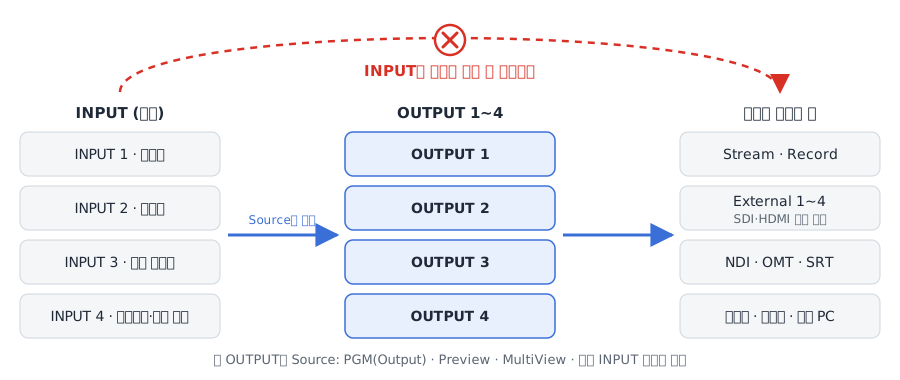
One step further: when you send signals out through an SDI or HDMI output card (DeckLink, Magewell, etc.), you can only assign OUTPUT 1–4 as well. It may be a bit confusing, but after a few tries it clicks. If you get lost, come back to this post and you'll have an "aha" moment.
What's written to the right of OUTPUT 1: Record / Stream / External 1
In the screenshot above, look to the right of OUTPUT 1 and you'll see Record / Stream / External. That means the recording source, the streaming source and external signal (HDMI/SDI) number 1 are all tied to OUTPUT 1.
If you leave OUTPUT 1 as PGM and stream, record and send to External 1, that part is easy. But if you want to stream, record or send out something other than PGM, you need to think it through. I'll cover the External and Record windows in detail in a separate post on tips and know-how.
A real example: using all four OUTPUTs at a lecture
Let's take a lecture stream as an example, where requests keep piling up one by one.
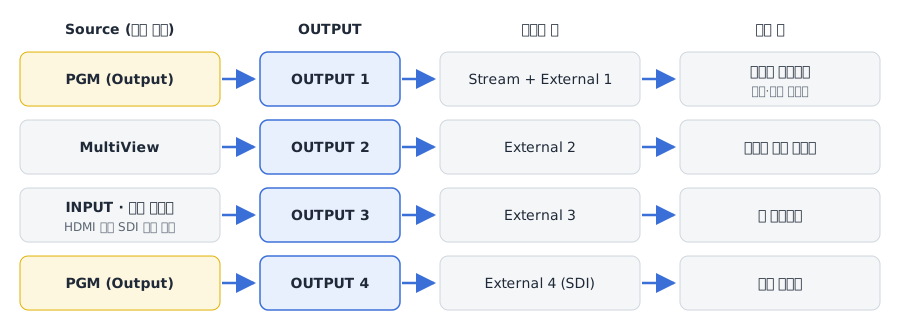
- PGM stream + entrance and speaker monitors: The streamed PGM picture also needs to be shown at the entrance and to the speaker. Set OUTPUT 1 to
Outputand feed the monitors through External 1. To use External you need an output card such as a DeckLink or Magewell. - MultiView for the camera director: The camera operators want to see a multi-screen view. Set OUTPUT 2 to MultiView and send it out through External 2.
- Speaker's laptop → projector: You take the speaker's laptop screen over HDMI and send it to the projector, while also using that same picture in PGM, either as PIP or full screen. Bring the laptop in directly over HDMI (or convert it to SDI), set it up as an input, assign that input to OUTPUT 3, and send it to the projector via External 3.
- Recording the stream picture: You've already used three Externals, and now someone asks you to record the streamed picture on a recorder. Set OUTPUT 4 to
Outputagain, take SDI from External 4, and record it on an external recorder.
Why I recommend an external recorder
It depends on your PC specs, but on an underpowered PC, recording several pictures at once can cause dropped frames in your stream. With a powerful PC, recording directly in vMix is fine. Still, I recommend an external recorder. Once the stream starts stuttering, the complaints pour in and viewers leave.
vMix's recording feature works well, but I wasn't always happy with the image quality. I don't know how it is these days, but a few times the recorded MP4 file couldn't be read in an editor like Premiere, so I prefer an external recording device.
Choosing a Source
Besides Output (the PGM picture), the dropdown lets you choose Preview (the preview picture), MultiView, individual inputs and more. For example, if you set Output 2's Source to a specific camera, only that camera's picture is sent separately to another destination.
Overlays: Making a clean feed
With All On, the picture goes out with all overlay channels (captions, logos, etc.) on top. If you turn overlays off in the dropdown, you get a "clean feed" without graphics. It's the setting I use most when I want graphics on the broadcast but a separate graphics-free recording for editing.
3. NDI, OMT and SRT: Sending over the network
Switch the button on the right of each Output row to On and that picture goes out over the network.
- NDI: Other PCs and devices on the same local network (LAN) can pick it up directly as an input. Use it to send to a recording PC, another vMix or OBS, or an NDI monitor.
- OMT: An open IP video transport format released on the vMix side. Like NDI, it's for passing video around a local network. Check that the receiving device or software supports it before using it.
- SRT: Used for sending over the internet across long distances. It holds up well against packet loss, so it suits remote-site delivery and transfers between an OB van and a studio.
- Gear icon (⚙): Detailed NDI and SRT settings. For SRT, this is where you set Caller/Listener mode, address and port, latency, and encoding quality.
The more network outputs you turn on, the more load you put on your CPU, GPU and network. Only turn on outputs that someone is actually receiving.
I'll cover the actual SRT and NDI setup in detail in Part 2.
4. Additional Outputs: Sending inputs and audio separately
- Cameras / Calls / Audio Inputs: Instead of the broadcast picture, this sends each camera, each vMix Call guest and each audio input out separately over NDI or OMT. It's handy for recording each camera's raw feed on another PC or pulling them into another switcher.
- Audio Outputs: Sends vMix's audio buses (Master, A–G) out as network audio.
5. MultiView Layout: The director's monitor view
This sets the layout of the MultiView screen, which gathers several inputs plus Preview and Program on one screen.
- MultiView 1 / 2: You can prepare up to two MultiViews with different layouts.
- Layout buttons: Choose from two large panes plus several small ones, a grid of small panes, a four-way split, a single pane and so on.
Legacyis the layout from older versions. - Customise Layout: Lets you assign exactly which input appears in each pane.
Once you've built a MultiView, choose MultiView as the Source in Fullscreen or an Output above, and send it to the director's monitor or over NDI.
6. Show Advanced Settings
Tick the checkbox at the bottom left and extra per-output options appear. If everything runs fine on the defaults, it's safest to leave these alone at first.
Common setups
| Goal | Setup |
|---|---|
| YouTube stream + recording | Output 1 = Output, Overlays All On |
| Graphics-free recording for editing | Output 2 = Output, Overlays off → NDI On → receive on the recording PC |
| Only the presentation on the venue screen | Fullscreen 1 = PPT input, Overlays off |
| Director's monitor | Fullscreen 2 = MultiView |
| Sending the broadcast to a remote site | Output 1 or 2 → SRT On → set address and port under ⚙ |
Key takeaways
- An INPUT can't go out directly. You must assign it to OUTPUT 1–4 to send it out.
- This screen is where you decide, row by row, "what → with or without graphics → where to."
- OUTPUT 1 is tied to Record, Stream and External 1, so don't casually change its Source.
- SDI and HDMI output cards also send only through OUTPUT 1–4 → External 1–4.
- Turning Overlays off gives you a clean feed, which is great for recording for editing.
- Use NDI (or OMT) on a local network and SRT over the internet.
- Set up your MultiView layout here, then send it out through Fullscreen or an Output to use as the director's monitor.
FAQ
Q1. I changed Output 1 and now YouTube is showing a different picture.
Recording and streaming are tied to OUTPUT 1. Keep OUTPUT 1 as Output, and use Outputs 2–4 if you need a different picture.
Q2. I turned on NDI, but another PC can't see it. Check that both PCs are on the same network segment and that Windows Firewall isn't blocking vMix and NDI. A wired gigabit connection is far more stable than Wi-Fi.
Q3. I want graphics on the broadcast but a recording without them.
Set Output 2's Source to Output and turn Overlays off, then record that output on another PC over NDI, or send it to a recording device through an External Output.
Coming next: OUTPUT Part 2
There's so much to say about OUTPUT that it's hard to fit into one post. In Part 2, I'll assume you're streaming to several destinations at once and explain how to set up overlays, plus how to configure SRT and NDI.